Learn how to use the Office Customization Tool and Office Deployment Tool to customize, deploy, and manage Microsoft Office installations. This guide explains XML configuration files, installation methods, deployment settings, troubleshooting techniques, and best practices to help you streamline Office deployment across devices.
| Tool Name | Office Customization Tool |
| Developer | Microsoft |
| Category | Office Deployment & Configuration |
| Platform | Windows |
| Purpose | Customize Microsoft Office Installation |
| Official Support | Microsoft Office Deployment Tool |
The Office Customization Tool (OCT) is a cloud-based tool offered by Microsoft to help you customize your Microsoft Office installations prior to deploying them. It works in tandem with the Office Deployment Tool (ODT) and helps you create a configuration file that describes your installation preferences like which Office products to get, the update channels you want to use, the languages you need, the architecture of your Office build (32 or 64 bits), and licensing preferences. This hence make it easier for you and/or your company to deploy Microsoft Office.
Enterprise, Education, Information Technologies are able to utilize the Office Customization Tool (OCT) in order to create a unified deployment of Microsoft Office across many different machines. The OCT eliminates the manual process of setting up Microsoft Office on each machine by allowing users to create a single XML configuration file, which can then be deployed to all devices using the same configuration. The OCT simplifies installation, reduces deployment errors, and gives organizations the ability to better control how Microsoft Office applications are installed and updated.
The Office Customization Tool includes several powerful features that make Microsoft Office deployment easier, faster, and more flexible for both individual users and organizations.
Choose exactly which Office apps to install, including Word, Excel, PowerPoint, Outlook, Access, Publisher, and Teams.
Automatically generate deployment-ready XML files without manually writing complex configuration code.
Select one or multiple Office languages to meet regional and organizational requirements.
Configure Current Channel, Monthly Enterprise Channel, or other update options before deployment.
Deploy Office in either 32-bit or 64-bit architecture depending on system compatibility needs.
Use the same configuration across multiple devices to maintain standardized Office installations.
Combine generated XML files with the Office Deployment Tool for faster and automated deployment.
Suitable for businesses, schools, government organizations, and IT administrators managing large deployments.
Customize installation behavior by controlling user interaction, display settings, automatic acceptance options, and deployment preferences to create a smoother Office installation experience.
Before using the Office Customization Tool and Office Deployment Tool, make sure your system meets the basic requirements listed below.
| Requirement | Details |
|---|---|
| Operating System | Windows 10, Windows 11, or supported Windows Server versions |
| Processor | 1.6 GHz or faster dual-core processor |
| Memory (RAM) | 4 GB RAM (64-bit) or 2 GB RAM (32-bit) |
| Storage Space | At least 4 GB of available disk space |
| Internet Connection | Required for downloading Office installation files and updates |
| Web Browser | Latest version of Chrome, Edge, Firefox, or Safari |
| Office Deployment Tool | Latest Office Deployment Tool package from Microsoft |
| Administrator Access | Recommended for deployment and installation tasks |
| Supported Office Products | Microsoft 365 Apps and supported Microsoft Office editions |
Next, we will walk through the complete process of downloading the Office Deployment Tool and using it alongside the Office Customization Tool for Microsoft Office 2024 deployment. By following these steps, you will be able to customize installation settings, generate a configuration file, and deploy Office according to your specific requirements.
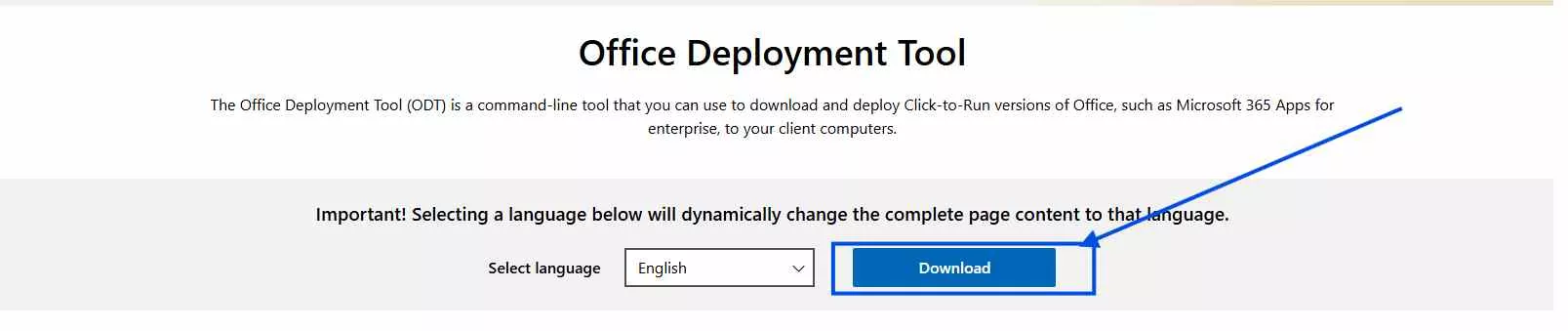
Step 1: Visit the official Microsoft Office Deployment Tool download page and click the Download button to save the setup file on your computer.
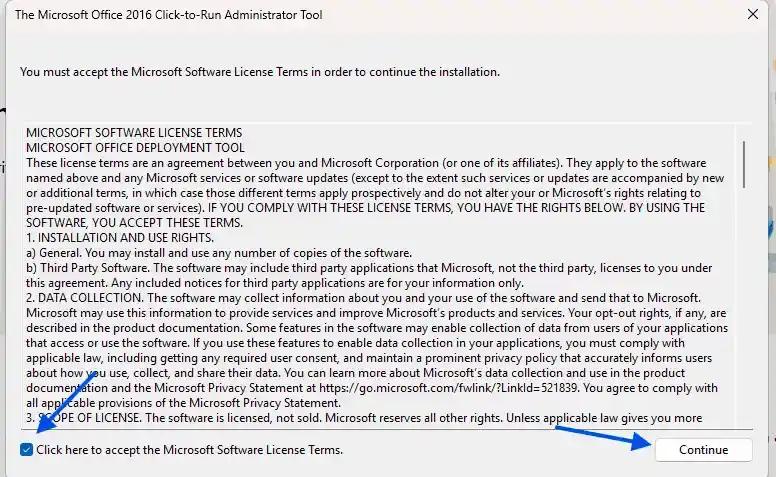
Step 2: After the download is complete, locate the downloaded file in your Downloads folder and double-click it to launch the extractor. You will have a popop box where click on Accept The Microsoft Terms and Then Continue
Step 3: Choose the desktop and create a new folder there name it Office 2024 then click on Ok.
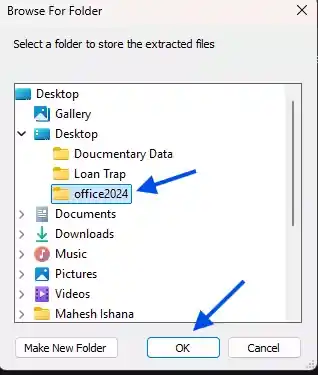
Step 4: As soon as you click the OK button, the extraction process will be completed automatically. A new folder containing setup.exe and sample configuration files will be created.
Step 5: Open the extracted folder and verify that the setup.exe file is available. This file will be used later to download and install Microsoft Office.
Step 6: Open and delete the configuration365 xml file because we will create office 2024 xml file using the Office Customization Tool and keep open the folder.
Now that the Office Deployment Tool has been downloaded and extracted, the next step is to create an XML configuration file using the Microsoft Office Customization Tool. This file will contain your Office installation preferences, including applications, language settings, update channels, and deployment options. Let's get started with the configuration process.
Step 1: Open the official Microsoft Office Customization Tool and access the deployment settings page to begin creating your Office configuration file.
Step 2: Under the Architecture section, select either the 64-bit or 32-bit version of Microsoft Office based on your system requirements.
Step 3: Choose the Office product Office 2024 LTSC to deploy Here we are installing Office 2024 so we choose office 2024 LTSC Professional Plus.
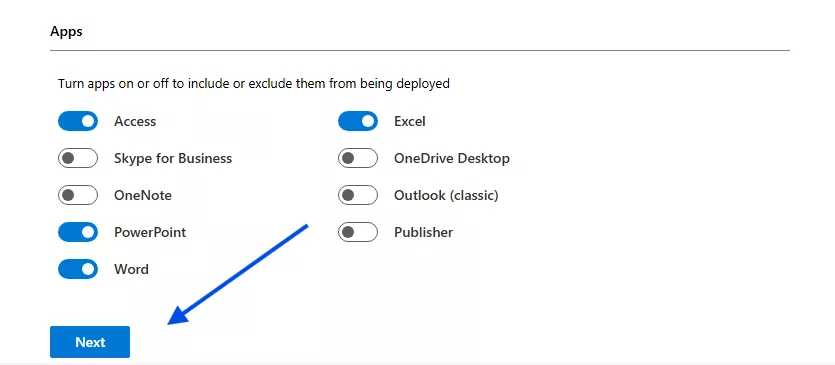
Step 4: Under the Apps section, choose which Office applications you want to install and exclude any applications that are not required. We will choose only Microsoft Word, Excel , PowerPoint and Access. You can choose whichever you want to install.
Step 5: Select the language that you want to install with Microsoft Office or you can use English Us or system match.
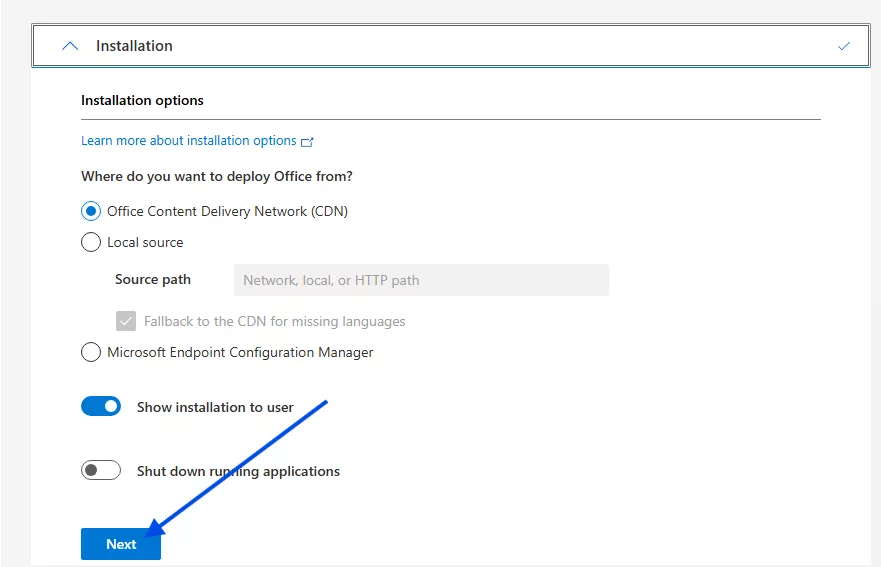
Step 6: In installation section leave everything as it is and click on just Next.
Step 7: In Update and upgrade options leave everything as it is and click on the Next.
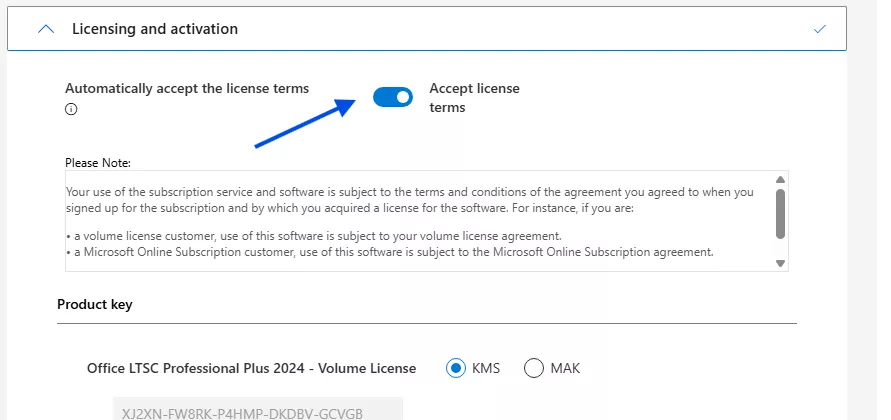
Step 8: You will reach at licensing and actvation where accet the Automatically accept the license terms and click on Next.
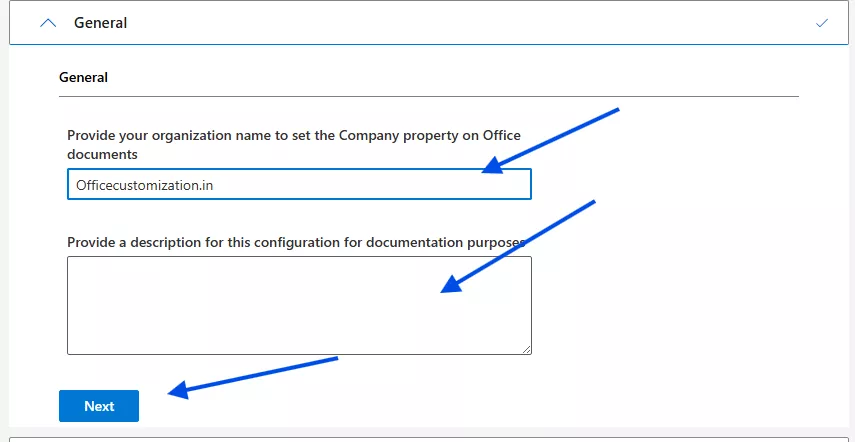
Step 9: Now fill your company name and description then click on Next or you can skip this step.
Step 10: You will reach at finish section so click on the Finish button.
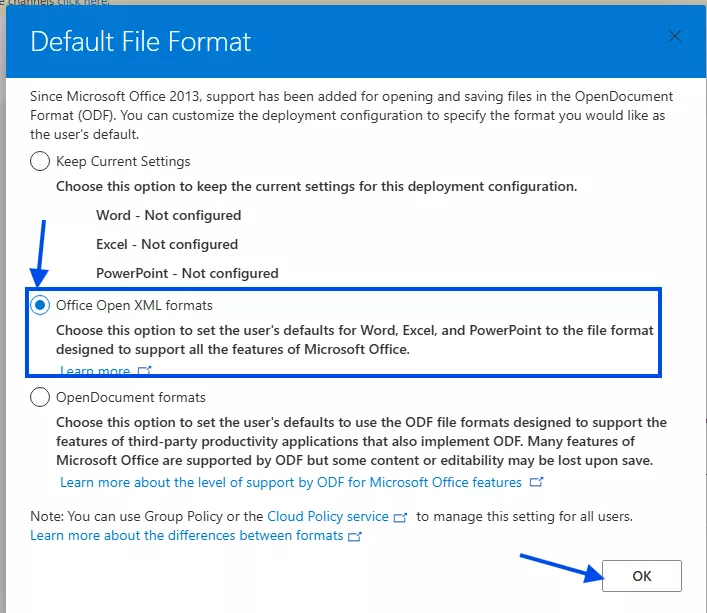
Step 11: In left side you will have Export button click on it to download the final xml file. As you click on the Export button you will have new popup where choose Office xml format. and click on Ok.
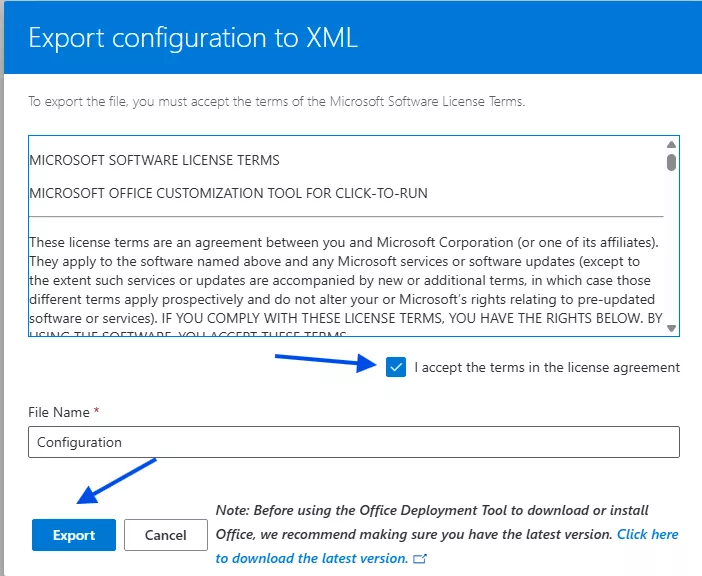
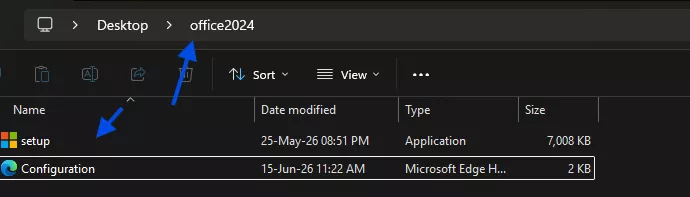
Step 12: In new popup check the box of license and agreement and click on the Final Export button. your xml file will be downloaded in download folder. then move the file to the folder which we have kept open during the deployment tool.
Step 13: So our Office Customization Tool (OCT) is ready to install office 2024. Lets follow the next step to install office in your system.
Step 1: Open CMD and run as Administrator. then type the command. cd C:\Users\mahesh-kumar\Desktop\office2024 (This is your folder path) then hit Enter button.
Step 2: To install office 2024 type the seccond command prompt setup.exe /configure configuration.xml then hit Enter button. now your download process will be started.
You have now completed the entire Office Customization Tool process, from creating the XML configuration file to deploying Microsoft Office 2024. By following these steps, you can customize installation settings, select the required Office applications, configure update preferences, and perform a smooth deployment. Whether you are installing Office on a single computer or across multiple devices, the Office Customization Tool provides a flexible and efficient way to manage Microsoft Office installations.
During Microsoft Office installation using the Office Deployment Tool and XML configuration file, users may encounter various errors. Below are some of the most common issues and their solutions.
The XML file contains incorrect syntax or unsupported configuration settings. Verify the XML structure and regenerate the file if necessary.
The setup.exe file is missing from the Office Deployment Tool folder. Ensure that all deployment files were extracted correctly.
The Command Prompt was not opened with administrator privileges. Run Command Prompt as Administrator and try again.
Office installation files cannot be downloaded due to network connectivity issues. Check your internet connection and firewall settings.
The system does not have enough storage space available for Microsoft Office installation files.
The selected Office product is not supported by the current deployment configuration.
A conflicting Office version already exists on the computer. Remove previous Office installations before continuing.
The XML configuration file is missing from the Office Deployment Tool directory or the file name is incorrect.
The selected update channel is not compatible with the installed Office version.
Office files are downloading slowly or have stopped due to network interruptions. Restart the process and verify connectivity.
The Office Customization Tool is one of the most effective ways to deploy and manage Microsoft Office 2024 installations. It allows users and IT administrators to customize installation settings, choose specific Office applications, configure updates, and automate deployments through XML configuration files. By following the steps outlined in this guide, you can create a streamlined installation process that saves time, reduces errors, and ensures consistency across devices. Whether you are setting up Office for personal use, a small business, or a large organization, the Office Customization Tool provides the flexibility and control needed for a successful deployment.
The Office Customization Tool helps users create customized Microsoft Office deployment configurations. It allows you to select applications, languages, update channels, and installation preferences before deploying Office.
Yes, the Office Customization Tool is provided by Microsoft at no cost. However, a valid Microsoft Office or Microsoft 365 license is required to install and activate Office products.
Yes. The Office Deployment Tool is required to download and install Microsoft Office using the XML configuration file generated by the Office Customization Tool.
Yes. You can choose specific applications such as Word, Excel, PowerPoint, Outlook, Access, and Publisher while excluding applications that are not required.
The XML configuration file should be saved in the same folder as the Office Deployment Tool setup.exe file so that the deployment commands can locate and use it correctly.